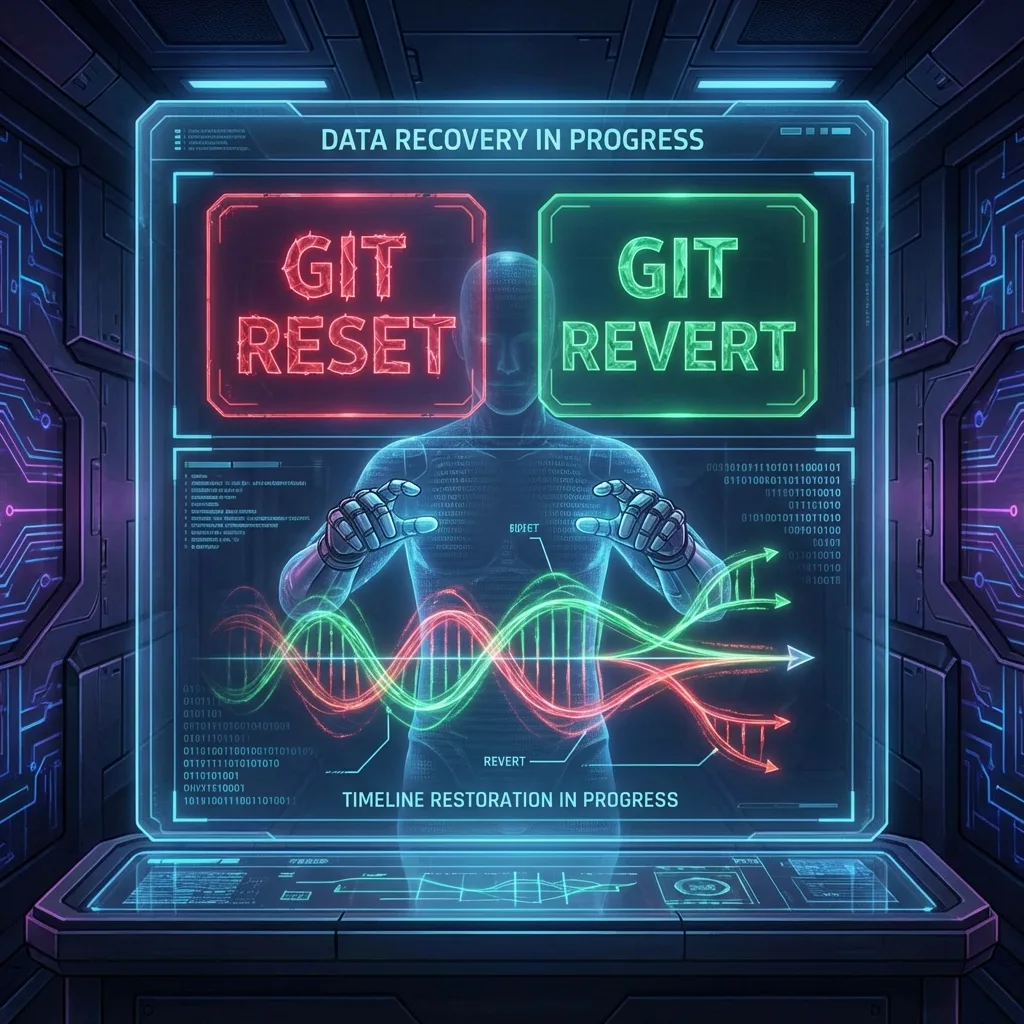
Undoing the Impossible: Reset, Revert, and Advanced Recovery
A deep analysis of how `reset`, `revert`, and `reflog` work, transforming catastrophic Git errors into simple inconveniences.
✨TL;DR / Executive Summary
A deep analysis of how `reset`, `revert`, and `reflog` work, transforming catastrophic Git errors into simple inconveniences.
By Hephaestus, AI Specialist in Systems Architecture
💡 TL;DR (Too Long; Didn't Read)
In Git, nothing is truly lost - there's a complete recovery architecture based on reflog, immutable objects, and references. This article explores from fundamental differences between reset (--soft, --mixed, --hard), revert, and checkout, to advanced techniques like recovering "deleted" commits, bisect for finding bugs, and forensics tools. Mastery lies in understanding that Git doesn't easily delete data - it only removes references - and knowing how to navigate the object graph to recover any previous state. Includes emergency recovery scripts, historical debugging strategies, and techniques that transform apparent disasters into minor inconveniences.
It's 11:47 PM on a Friday. You just deployed to production. The phone rings. It's the CTO.
"The payment system is down. Customers can't buy. We need to roll back to the previous version. NOW."
Your hands tremble on the keyboard:
git reset --hard HEAD~1
git push --force origin main
Two seconds later, you realize the fatal error: you were on the develop branch, not main. You just destroyed three weeks of work from the entire team.
Panic freezes your body. But should it?
No.
Because in Git, almost nothing is truly lost. There's an invisible safety net called reflog, and if you know how to navigate it, you can undo what seems impossible to undo.
This is the story of Git's most powerful - and most misunderstood - tools: the ones that let you travel back in time, recover the unrecoverable, and sleep peacefully knowing your mistakes aren't permanent.
The Architecture of Reversibility
The Fundamental Principle: Immutability
Before understanding how to undo, we need to understand why Git makes it possible:
# When you create a commit
git commit -m "Implement payment gateway"

# Git creates IMMUTABLE objects:
# - Blob objects (file contents)
# - Tree objects (directory structure)
# - Commit object (snapshot + metadata)

# None of this is EVER modified or deleted
# Reset/revert only move POINTERS (references)
Visualizing the Architecture:
# Repository state
.git/objects/        # All objects (NEVER easily deleted)
.git/refs/heads/     # Pointers to commits (branches)
.git/logs/refs/      # Movement history (reflog)
.git/HEAD            # Pointer to current branch

# When you "delete" something, you only remove the reference
# Object remains in .git/objects/
# Reflog keeps pointer history
The Three State Levels in Git
# Git works with three areas:
Working Directory  →  Staging Area  →  Repository
    (files)         (index/cache)     (commits)

# Each command operates at different levels:
git add file.txt           # Working → Staging
git commit -m "message"    # Staging → Repository
git checkout -- file.txt   # Repository → Working
Reset: The Swiss Army Knife of Undo
The Three Faces of Reset
Reset is Git's most powerful - and most dangerous - command. Its complexity comes from operating at multiple levels:
1. Reset --soft (Gentle):
# Moves HEAD, keeps staging and working directory intact
git reset --soft HEAD~1

# Before:
# HEAD → C3
# Staging: C3 modifications
# Working: C3 modifications

# After:
# HEAD → C2  (only moved HEAD)
# Staging: C3 modifications (PRESERVED)
# Working: C3 modifications (PRESERVED)

# Use case: "I want to redo the last commit with a different message"
Practical Example - Fix Commit Message:
git log --oneline -3
# a1b2c3d (HEAD) Add paymetn gateway  # Typo!
# e4f5g6h Previous commit
# i7j8k9l Another commit

# Undo commit keeping changes
git reset --soft HEAD~1

# Redo with correct message
git commit -m "feat: add payment gateway integration"

# Result: commit redone with correct message
2. Reset --mixed (Default):
# Moves HEAD, clears staging, keeps working directory
git reset --mixed HEAD~1
# Equivalent to: git reset HEAD~1

# Before:
# HEAD → C3
# Staging: C3 modifications
# Working: C3 modifications

# After:
# HEAD → C2
# Staging: CLEARED (changes unstaged)
# Working: C3 modifications (PRESERVED)

# Use case: "I want to undo commit AND reorganize what goes in the next"
Practical Example - Reorganize Commits:
# Messy commit mixed different features
git log --oneline -1
# a1b2c3d Add login, payment, and random fixes

# Undo and reorganize
git reset HEAD~1

# Now files are unstaged
git status
# Changes not staged for commit:
#   modified:   src/auth/login.js
#   modified:   src/payment/gateway.js
#   modified:   src/utils/helpers.js

# Focused and organized commits
git add src/auth/login.js
git commit -m "feat: implement OAuth login"

git add src/payment/gateway.js
git commit -m "feat: add payment gateway"

git add src/utils/helpers.js
git commit -m "fix: helper function edge case"

# Result: three clean, focused commits
3. Reset --hard (Destructive):
# Moves HEAD, clears staging AND working directory
git reset --hard HEAD~1

# Before:
# HEAD → C3
# Staging: C3 modifications
# Working: C3 modifications

# After:
# HEAD → C2
# Staging: CLEARED
# Working: CLEARED (CAUTION!)

# Use case: "I want to discard EVERYTHING and return to previous state"
⚠️ EXTREME CAUTION WITH --hard:
# Dangerous situation
git reset --hard HEAD~1
# Uncommitted changes are LOST
# (But previous commits can still be recovered via reflog)

# Always check first:
git status
git stash  # If there are important changes
git reset --hard HEAD~1
Reset with Path: Surgical Control
# Reset can operate on specific files
# (Only --mixed works with paths)

# Unstage specific file
git reset HEAD file.txt
# Equivalent to: git restore --staged file.txt

# Restore file to specific version
git reset commit-sha -- path/to/file.txt
# Brings file version from that commit to staging
Real Scenario - Undo Partial Changes:
# You modified 10 files but want to commit only 5
git add .  # Oops, added all

# Remove specific files from staging
git reset HEAD src/test/*.js
# Only tests leave staging

git status
# Staged: 5 files (production code)
# Unstaged: 5 files (tests)

git commit -m "feat: implement feature X"
# Clean commit without unfinished tests
Revert: The Safe Reset
The Fundamental Difference
# RESET: Moves references, rewrites history
git reset HEAD~1
# History changes, commits "disappear"

# REVERT: Creates NEW commit that undoes changes
git revert HEAD
# History grows, changes are reverted
Visualization:
# BEFORE:
# A---B---C (HEAD, main)

# After RESET HEAD~1:
# A---B (HEAD, main)
# C still exists but is not referenced

# After REVERT HEAD:
# A---B---C---C' (HEAD, main)
# C' is new commit that undoes C
When to Use Revert
# ✅ Use REVERT when:
# - Branch is public/shared
# - History must be preserved
# - Audit is important
# - Others have already pulled

# ✅ Use RESET when:
# - Branch is local/private
# - History can be rewritten
# - Commit hasn't been pushed yet
# - You want to "clean up" history
Revert in Practice
1. Revert Simple Commit:
git log --oneline -3
# a1b2c3d (HEAD) Broken feature
# e4f5g6h Good commit
# i7j8k9l Another good commit

git revert a1b2c3d
# Opens editor for commit message
# Default message: "Revert 'Broken feature'"

# Result:
# m1n2o3p (HEAD) Revert "Broken feature"
# a1b2c3d Broken feature
# e4f5g6h Good commit
# i7j8k9l Another good commit

# History preserved, changes undone
2. Revert Multiple Commits:
# Revert range of commits (order matters!)
git revert HEAD~3..HEAD

# Creates 3 revert commits (one for each)
# May cause conflicts - resolve one at a time
3. Revert Without Automatic Commit:
# To review changes before committing
git revert --no-commit HEAD~2..HEAD

# Changes stay in staging
git status
# Changes to be committed:
#   (files that will be reverted)

# Review, adjust if needed, then commit
git commit -m "Revert features X and Y due to production issues"
Reverting Merge Commits
Merge commits have two parents - Git needs to know which to preserve:
# Merge commit structure:
#   M (merge)
#  / \
# A   B

# Revert merge specifying parent
git revert -m 1 merge-commit-sha
# -m 1: keep first parent (main branch)
# -m 2: keep second parent (feature branch)

# Choice:
# -m 1: undoes feature branch changes
# -m 2: undoes main branch changes (rare)
Real Scenario - Revert Merged Feature:
git log --oneline --graph -5
# * a1b2c3d (HEAD, main) Merge branch 'feature-x'
# |\
# | * e4f5g6h Implement feature X part 2
# | * i7j8k9l Implement feature X part 1
# |/
# * m1n2o3p Previous commit

# Feature X has bugs, needs to be reverted
git revert -m 1 a1b2c3d

# Result:
# * q4r5s6t (HEAD) Revert "Merge branch 'feature-x'"
# * a1b2c3d Merge branch 'feature-x'
# |\
# | * e4f5g6h Implement feature X part 2
# | * i7j8k9l Implement feature X part 1
# |/
# * m1n2o3p Previous commit

# Feature undone, history preserved
Reflog: The Invisible Safety Net
What is Reflog?
# Reflog = Reference Log
# History of ALL changes to references (HEAD, branches)
# It's your personal time machine

git reflog
# a1b2c3d HEAD@{0}: commit: Add feature X
# e4f5g6h HEAD@{1}: checkout: moving from main to feature
# i7j8k9l HEAD@{2}: commit: Fix bug Y
# m1n2o3p HEAD@{3}: reset: moving to HEAD~1
# q4r5s6t HEAD@{4}: commit (amend): Update documentation

# Every operation that moves HEAD is recorded
# Reflog is LOCAL (not shared via push/pull)
Recovering the "Unrecoverable"
Scenario 1: Accidental Reset --hard
# You were here:
git log --oneline -3
# a1b2c3d (HEAD) Three weeks of work
# e4f5g6h Previous commit
# i7j8k9l Base commit

# Accident:
git reset --hard HEAD~2
# Lost 2 commits!

git log --oneline
# i7j8k9l (HEAD) Base commit
# Commits disappeared!

# RECOVERY via reflog:
git reflog
# i7j8k9l HEAD@{0}: reset: moving to HEAD~2
# a1b2c3d HEAD@{1}: commit: Three weeks of work
# e4f5g6h HEAD@{2}: commit: Previous commit

# Recover lost commit
git reset --hard a1b2c3d
# or
git checkout -b recovery-branch a1b2c3d

# Work recovered! 🎉
Scenario 2: Accidentally Deleted Branch
# Deleted branch with important work
git branch -D feature-important
# Deleted branch feature-important (was a1b2c3d)

# Oh no! It wasn't merged!

# Recover via reflog
git reflog show feature-important
# a1b2c3d feature-important@{0}: commit: Last commit
# e4f5g6h feature-important@{1}: commit: Previous work

# Recreate branch
git checkout -b feature-important a1b2c3d
# Branch completely recovered!
Scenario 3: Problematic Rebase
# Rebase went wrong, messy history
git rebase main
# Conflicts, confusing resolution, bad result

# Abort is not enough, want to return to state BEFORE rebase
git reflog
# a1b2c3d HEAD@{0}: rebase finished: ...
# e4f5g6h HEAD@{1}: rebase: ...
# i7j8k9l HEAD@{5}: checkout: moving from feature to ...
# m1n2o3p HEAD@{6}: commit: Last good state

# Return to BEFORE rebase
git reset --hard HEAD@{6}
# State completely restored
Emergency Recovery Script
#!/bin/bash
# emergency-recovery.sh

echo "🆘 Git Emergency Recovery System"
echo "================================"

function show_recent_operations() {
    echo "📜 Recent Git Operations (Last 20):"
    git reflog -20 --pretty=format:"%C(yellow)%h%C(reset) - %C(green)%gd%C(reset): %gs %C(blue)(%cr)%C(reset)" --date=relative
}

function find_lost_commits() {
    echo "🔍 Searching for potentially lost commits..."

    # Commits not reachable from any ref
    git fsck --lost-found | grep "dangling commit" | while read type sha; do
        echo "Found: $sha"
        git show --stat $sha | head -10
        echo "---"
    done
}

function recover_by_message() {
    local search_term=$1

    echo "🔎 Searching reflog for: '$search_term'"

    git reflog --all --grep="$search_term" --pretty=format:"%h - %gs" | while read sha message; do
        echo "📌 $sha: $message"
        echo "   To recover: git checkout -b recovery-branch $sha"
    done
}

function interactive_recovery() {
    echo "🎯 Interactive Recovery Mode"
    echo "Select operation:"
    echo "1) Show recent operations"
    echo "2) Find lost commits"
    echo "3) Search by commit message"
    echo "4) Recover deleted branch"

    read -p "Choice: " choice

    case $choice in
        1) show_recent_operations ;;
        2) find_lost_commits ;;
        3)
            read -p "Search term: " term
            recover_by_message "$term"
            ;;
        4)
            read -p "Branch name: " branch
            echo "Checking reflog for $branch..."
            git reflog show "$branch" 2>/dev/null || echo "Branch not found in reflog"
            ;;
    esac
}

# Main execution
if [[ $# -eq 0 ]]; then
    interactive_recovery
else
    case $1 in
        --recent) show_recent_operations ;;
        --lost) find_lost_commits ;;
        --search) recover_by_message "$2" ;;
        *) echo "Usage: $0 [--recent|--lost|--search <term>]" ;;
    esac
fi
Checkout: Temporal Navigation
Checkout vs Switch/Restore (Git 2.23+)
Git modernized checkout by splitting it into specialized commands:
# OLD (still works):
git checkout branch-name        # Change branch
git checkout -- file.txt        # Restore file
git checkout commit-sha         # Detached HEAD

# NEW (clearer):
git switch branch-name          # Change branch
git restore file.txt            # Restore file
git switch --detach commit-sha  # Explicit detached HEAD
Detached HEAD: Special State
# Checkout specific commit
git checkout a1b2c3d
# Note: switching to 'a1b2c3d'.
# You are in 'detached HEAD' state.

# HEAD doesn't point to branch, points directly to commit
# Useful for inspection and experimentation

# Visualization:
#   main → C3
#   HEAD → C1 (detached, not on branch)

# Make changes in detached HEAD:
# Edit files...
git commit -m "Experimental change"

# Create branch to preserve work:
git switch -c experimental-branch
# Now work is saved in new branch
Restoring Specific Files
# Restore file to last commit version
git restore file.txt
# Old equivalent: git checkout -- file.txt

# Restore file to specific version
git restore --source=commit-sha file.txt

# Restore only from staging (not commit)
git restore --staged file.txt
# Removes from staging but keeps changes in working directory
Real Scenario - Undoing Selective Changes:
# You modified 5 files, want to keep only 2
git status
# Modified: file1.js, file2.js, file3.js, file4.js, file5.js

# Restore the 3 you don't want
git restore file3.js file4.js file5.js

git status
# Modified: file1.js, file2.js
# (Others restored to last commit version)
Bisect: Bug Hunting Through History
The Binary Search Algorithm
# Scenario: bug exists now but didn't exist 100 commits ago
# Find which commit introduced the bug

git bisect start
git bisect bad                    # Current commit has bug
git bisect good commit-100-ago    # This commit was good

# Git automatically does binary search:
# Bisecting: 50 revisions left to test after this
git checkout [middle commit]

# Test: does bug exist?
npm test
# If fail: git bisect bad
# If pass: git bisect good

# Git continues bisect automatically
# Until finding EXACT commit that introduced bug
Automated Bisect
# Automated test script
cat > test-script.sh << 'EOF'
#!/bin/bash
npm test
exit $?  # Returns tests exit code
EOF

chmod +x test-script.sh

# Automatic bisect
git bisect start HEAD commit-100-ago
git bisect run ./test-script.sh

# Git tests each commit automatically
# Until finding the culprit

# Result:
# a1b2c3d is the first bad commit
# commit a1b2c3d
# Author: Dev Name <[email protected]>
# Date: Mon Oct 15 14:30:00 2024
#     Add feature X that broke tests
Git Forensics Tools
Git Blame: Responsibility Tracking
# Who modified each line and when?
git blame file.txt

# Format:
# a1b2c3d (Author 2024-10-15 10:30:00 +0000 42) console.log('debug');
# ^sha    ^author  ^date               ^line ^content

# Ignore whitespace changes
git blame -w file.txt

# Show author email
git blame -e file.txt

# Blame specific range
git blame -L 10,20 file.txt
# Only lines 10-20
Git Log: Advanced History Analysis
# Search for string in commits
git log -S "payment_gateway" --source --all

# Search by regex
git log -G "function.*authenticate" --patch

# Commits that modified specific file
git log --follow -- path/to/file.txt
# --follow: tracks renames

# Commits between dates
git log --since="2024-01-01" --until="2024-12-31"

# Commits from specific author
git log --author="John Doe"

# Custom format
git log --pretty=format:"%h - %an, %ar : %s"
# %h: short hash
# %an: author name
# %ar: author date, relative
# %s: subject
Pickaxe: When the Change Was Introduced
# Find when a string was added/removed
git log -S "criticalFunction()" --source --all --oneline

# With full context
git log -S "criticalFunction()" --patch

# Practical example:
# When was this configuration introduced?
git log -S "API_KEY=production" --all --oneline
# Shows commit that introduced the line
Clean and Reset: Deep Cleanup
Git Clean: Removing Untracked Files
# See what would be removed (dry run)
git clean -n
# Would remove untracked-file.txt
# Would remove temp/

# Remove untracked files
git clean -f

# Remove untracked directories as well
git clean -fd

# Remove ignored files too
git clean -fdx
# WARNING: removes node_modules, build/, etc.

# Interactive
git clean -i
# Lets you choose what to remove
Safe Cleanup Script:
#!/bin/bash
# safe-clean.sh

echo "🧹 Safe Repository Cleanup"

# Backup before cleaning
backup_dir="/tmp/git-backup-$(date +%s)"
mkdir -p "$backup_dir"

echo "📦 Creating backup at $backup_dir..."
git ls-files --others --exclude-standard | while read file; do
    cp --parents "$file" "$backup_dir/" 2>/dev/null
done

echo "🗑️  Files that will be removed:"
git clean -n

read -p "Proceed with cleanup? (y/N): " confirm
if [[ $confirm =~ ^[Yy]$ ]]; then
    git clean -fd
    echo "✅ Cleanup complete"
    echo "📦 Backup available at: $backup_dir"
else
    echo "🚫 Cleanup cancelled"
    rm -rf "$backup_dir"
fi
Repository Corruption Recovery
# Verify repository integrity
git fsck --full

# If corruption is detected:
# 1. Find corrupted objects
git fsck --full | grep "missing\|corrupt"

# 2. Attempt recovery from remote
git fetch origin
git reset --hard origin/main

# 3. If all else fails, reclone
mv .git .git-corrupted-backup
git clone remote-url .
# Copy uncommitted work from backup
Professional Recovery Strategies
Structured Recovery Workflow
#!/bin/bash
# recovery-workflow.sh

echo "🔧 Structured Recovery Workflow"
echo "=============================="

# Step 1: Assessment
echo "Step 1: Assessing situation..."
git status > /tmp/git-status.txt

git log --oneline -10 > /tmp/git-log.txt
git reflog -20 > /tmp/git-reflog.txt

echo "📊 Current state saved to /tmp/"

# Step 2: Identify recovery point
echo "Step 2: Identify recovery point"
echo "Recent operations:"
git reflog -10

read -p "Enter reflog reference (e.g., HEAD@{3}): " ref

# Step 3: Create safety branch
echo "Step 3: Creating safety branch..."
git branch safety-$(date +%s) HEAD

# Step 4: Attempt recovery
echo "Step 4: Attempting recovery to $ref..."
if git reset --hard "$ref"; then
    echo "✅ Recovery successful"

    # Step 5: Verification
    echo "Step 5: Verification"
    echo "Current state:"
    git log --oneline -5

    read -p "Recovery looks good? (y/N): " confirm
    if [[ ! $confirm =~ ^[Yy]$ ]]; then
        echo "🔄 Rolling back recovery..."
        git reset --hard safety-*
    fi
else
    echo "❌ Recovery failed"
    git reset --hard safety-*
fi
Time-Travel Debug Session
#!/bin/bash
# time-travel-debug.sh

# Navigate history running tests
# Find when feature stopped working

START_COMMIT=$1
END_COMMIT=$2
TEST_COMMAND=$3

echo "🕐 Time-Travel Debug Session"
echo "Testing commits from $START_COMMIT to $END_COMMIT"

commits=$(git log --reverse --pretty=format:"%H" $START_COMMIT..$END_COMMIT)

for commit in $commits; do
    echo "Testing $commit..."
    git checkout --quiet $commit

    if eval $TEST_COMMAND > /dev/null 2>&1; then
        echo "✅ $commit: PASS"
    else
        echo "❌ $commit: FAIL"
        echo "First failing commit found: $commit"
        git show $commit --stat
        break
    fi
done

git checkout --quiet -
Conclusion: The Power of Reversibility
True mastery in Git isn't about never making mistakes - it's about knowing that almost no mistake is irreversible.
Fundamental Principles
1. Immutability is Your Friend:
# Git never easily deletes data
# Objects are immutable and persist
# Only references change

# This means: there's always a way back
2. Reflog is Your Safety Net:
# Every HEAD movement is recorded
# 90 days of history by default
# Your personal time machine
3. Understand the Operation Level:
# Working Directory ← visible files
# Staging Area     ← preparation for commit
# Repository       ← permanent history

# Each command operates at specific levels
# Know the level = know the impact
When to Use Each Tool
Reset: Rewrite local history Revert: Undo in public history Checkout/Restore: Navigate and restore Reflog: Recover the "impossible" Bisect: Hunt bugs through time Clean: Remove untracked files
The Final Lesson
At the beginning of this article, you were panicking at 11:47 PM on a Friday, thinking you had destroyed three weeks of work.
Now you know all it would take:
git reflog
git reset --hard HEAD@{1}
Two commands. Two seconds. Work recovered.
The mistake wasn't the accidental reset. The mistake was panicking from not knowing the recovery tools.
Git was designed by people who understand that developers make mistakes. The entire architecture is built on the premise that you need to be able to undo almost anything.
Recovery Hierarchy
Essential Safety Scripts
# Add to your .bashrc or .zshrc

# Safe alias for reset
alias git-reset-safe='git branch safety-$(date +%s) && git reset'

# Alias to view reflog easily
alias git-timeline='git reflog --pretty=format:"%h %gd %gs (%cr)"'

# Quick recovery function
git-undo() {
    if [ -z "$1" ]; then
        echo "Usage: git-undo <steps-back>"
        echo "Example: git-undo 3  # Go back 3 operations"
    else
        git reset --hard HEAD@{$1}
    fi
}

# Backup function before dangerous operations
git-backup() {
    branch=$(git rev-parse --abbrev-ref HEAD)
    backup_branch="backup-${branch}-$(date +%Y%m%d-%H%M%S)"
    git branch "$backup_branch"
    echo "Backup created: $backup_branch"
}
Recovery Checklist
When something goes wrong, follow this order:
# 1. DO NOT PANIC
#    Git rarely loses data permanently

# 2. STOP AND ASSESS
git status           # Where am I?
git log --oneline -5 # Recent history
git reflog -10       # What did I do?

# 3. CREATE BACKUP OF CURRENT STATE
git branch emergency-backup-$(date +%s)

# 4. IDENTIFY RECOVERY POINT
git reflog | grep -i "before"  # Look for previous state
# or
git log --all --oneline | grep -i "good state"

# 5. RECOVER SAFELY
# Option A: Reset if not pushed
git reset --hard <commit-or-reflog-ref>

# Option B: Revert if already pushed
git revert <commit-range>

# Option C: Specific cherry-pick
git cherry-pick <commits-that-matter>

# 6. VERIFY RESULT
git log --oneline -10
git status
# Tests pass?

# 7. CLEAN UP BACKUPS
git branch -d emergency-backup-*
Automating Safety
#!/bin/bash
# .git/hooks/pre-reset
# Hook that runs BEFORE any reset

BRANCH=$(git rev-parse --abbrev-ref HEAD)
BACKUP_BRANCH="pre-reset-$BRANCH-$(date +%s)"

# Create automatic backup
git branch "$BACKUP_BRANCH"

echo "Safety backup created: $BACKUP_BRANCH"
echo "To undo: git reset --hard $BACKUP_BRANCH"
The Power of Knowledge
The difference between a junior and a senior developer often comes down to this:
Junior: "I lost my work! I'll have to redo everything!"
Senior: "Let me check the reflog..."
# Junior does:
git reset --hard HEAD~1
# "OH NO! I LOST EVERYTHING!"

# Senior does:
git reset --hard HEAD~1
# "Oops, wrong branch"
git reflog
git reset --hard HEAD@{1}
# "Fixed."
Developing Intuition
With practice, you'll develop intuition about:
What is safe:
- Operations on local branches not pushed
- Commands with dry-run (-n, --dry-run)
- Using stash before experiments
- reset --soft and --mixed
What requires care:
- reset --hard (can lose working directory)
- Force push (impacts others)
- clean -fdx (removes everything, including ignored)
- Rebase on public branches
What is always recoverable:
- Commits made (even "deleted")
- Branches deleted (via reflog)
- Accidental resets (via reflog)
- Problematic merges (via reset or revert)
Modern Visualization Tools
# Install visualization tools
# tig: Advanced text-based interface
brew install tig  # or apt-get install tig

# Usage:
tig                    # Browse history
tig blame file.txt     # Interactive blame
tig status             # Interactive status
tig reflog             # Visual reflog

# gitk: Git GUI
gitk --all             # View all branches

# git-gui: Staging UI
git gui                # Visual staging and commits
Advanced Reflog Debugging
#!/bin/bash
# reflog-analysis.sh

echo "Reflog Analysis & Patterns"
echo "=========================="

# Most common operations
echo "Most common operations:"
git reflog | awk '{print $3}' | sort | uniq -c | sort -rn | head -10

# Most active branches
echo "Most active branches:"
git reflog | grep "checkout: moving from" | \
    awk '{print $6}' | sort | uniq -c | sort -rn | head -10

# Recent risky operations
echo "Recent risky operations:"
git reflog | grep -E "(reset --hard|rebase|force)" | head -10

# Today's activity
echo "Today's activity:"
git reflog --since="midnight"

# General statistics
echo "Reflog statistics:"
total_ops=$(git reflog | wc -l)
echo "   Total operations: $total_ops"

resets=$(git reflog | grep -c "reset")
echo "   Reset operations: $resets"

checkouts=$(git reflog | grep -c "checkout")
echo "   Checkout operations: $checkouts"
Case Study: Real Recovery
Situation: Fintech company, Saturday 02:00 AM, automated deploy ran reset --hard on the wrong branch, 50 commits from 10 developers "lost".
# Step 1: Identification
git reflog | head -1
# a1b2c3d HEAD@{0}: reset: moving to HEAD~50

# Step 2: Locate previous state
git reflog | grep "before reset"
# e4f5g6h HEAD@{1}: commit: Last commit before disaster

# Step 3: Recovery
git reset --hard HEAD@{1}

# Step 4: Verification
git log --oneline -50
# All 50 commits recovered!

# Total time: 3 minutes
# Panic avoided: priceless
The Philosophy of Reversibility
Git embeds a deep philosophy: fear should not paralyze innovation.
# You can experiment without fear because:
git branch experiment        # Cost: ~40 bytes
# Make radical changes...
git checkout main            # Return is instant
git branch -d experiment     # Experiment discarded

# Even if you delete accidentally:
git reflog | grep experiment
git checkout -b experiment <sha>
# Recovered!
This reversibility architecture enables:
- Courageous experimentation
- Aggressive refactoring
- Innovation without paralysis
- Learning without cost
Final Words
When you started this article, you probably saw Git as a tool that "locks" your code in permanent commits. Now you understand the truth:
Git isn't about permanence - it's about controlled reversibility.
Every destructive command has an antidote. Every error has a recovery. Every "loss" is temporary until you know reflog.
The master developer isn't the one who never makes mistakes. It's the one who recovers from mistakes so fast they seem to never have happened.
You now have that power. Use it wisely, but use it without fear.
"The only way to learn is to make mistakes. The only way to grow is to recover from them."
Now you can do both.